
How to Resolve Card Payment Failures in Sales Intellect POS
If you’re experiencing card payment failures in your Sales Intellect POS account, it could be due to incorrect card details or external banking issues. You might encounter an error message such as:
“Your card has been declined; check with your bank and retry.”
This issue can arise for several reasons, including:
-
Bank system issues: The bank may be undergoing maintenance or experiencing downtime. In this case, it’s best to contact your bank directly to confirm.
-
Incorrect card information: A mismatch in the card number, name, or other required details can also cause the transaction to fail.
How to Fix the Issue
To resolve this, follow the steps below to update your payment information in Sales Intellect POS:
Step 1:
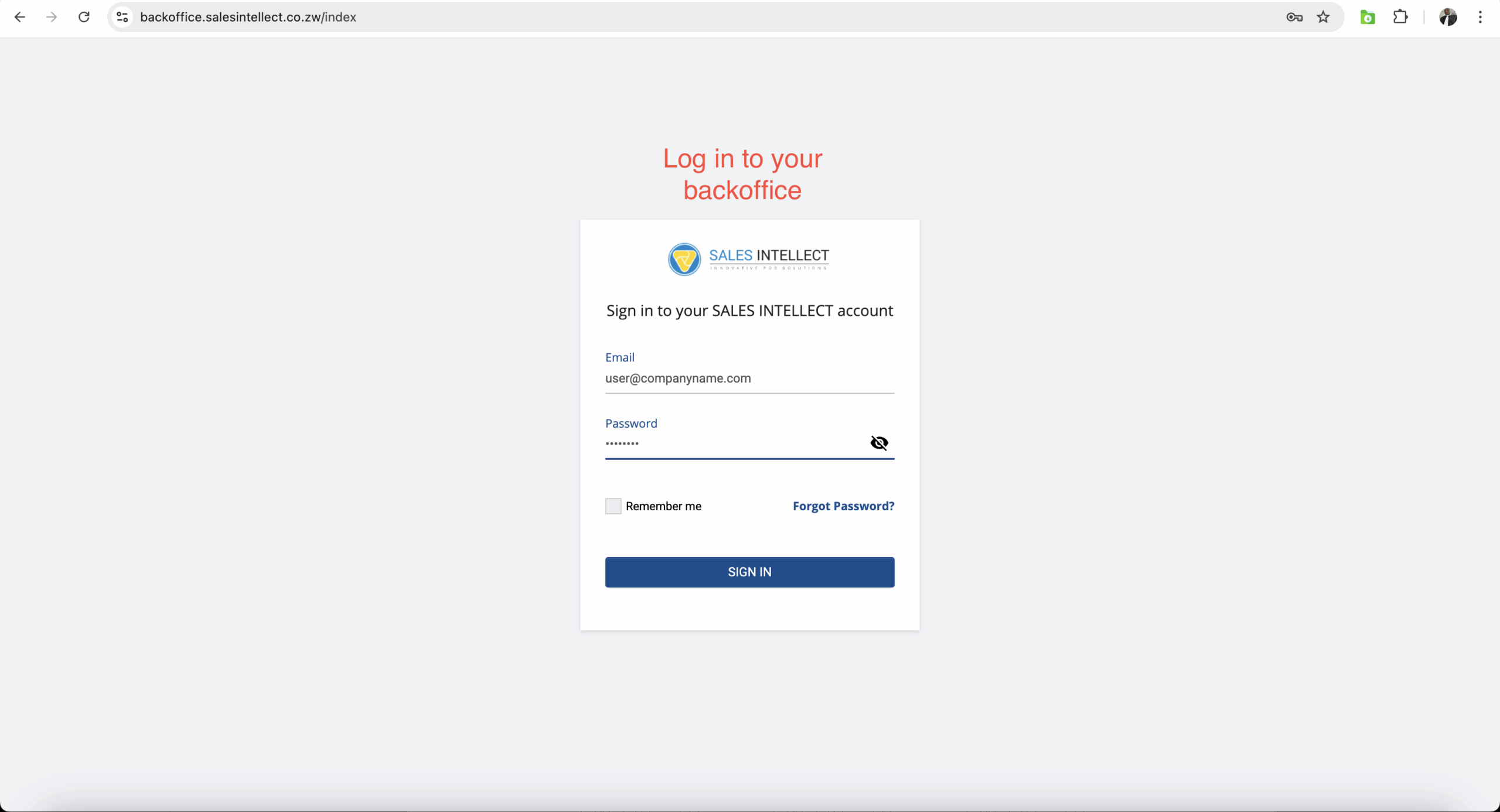
Log in to the back office by visiting:
https://backoffice.salesintellect.co.zw
Use your back office admin email and password to sign in.
Step 2:
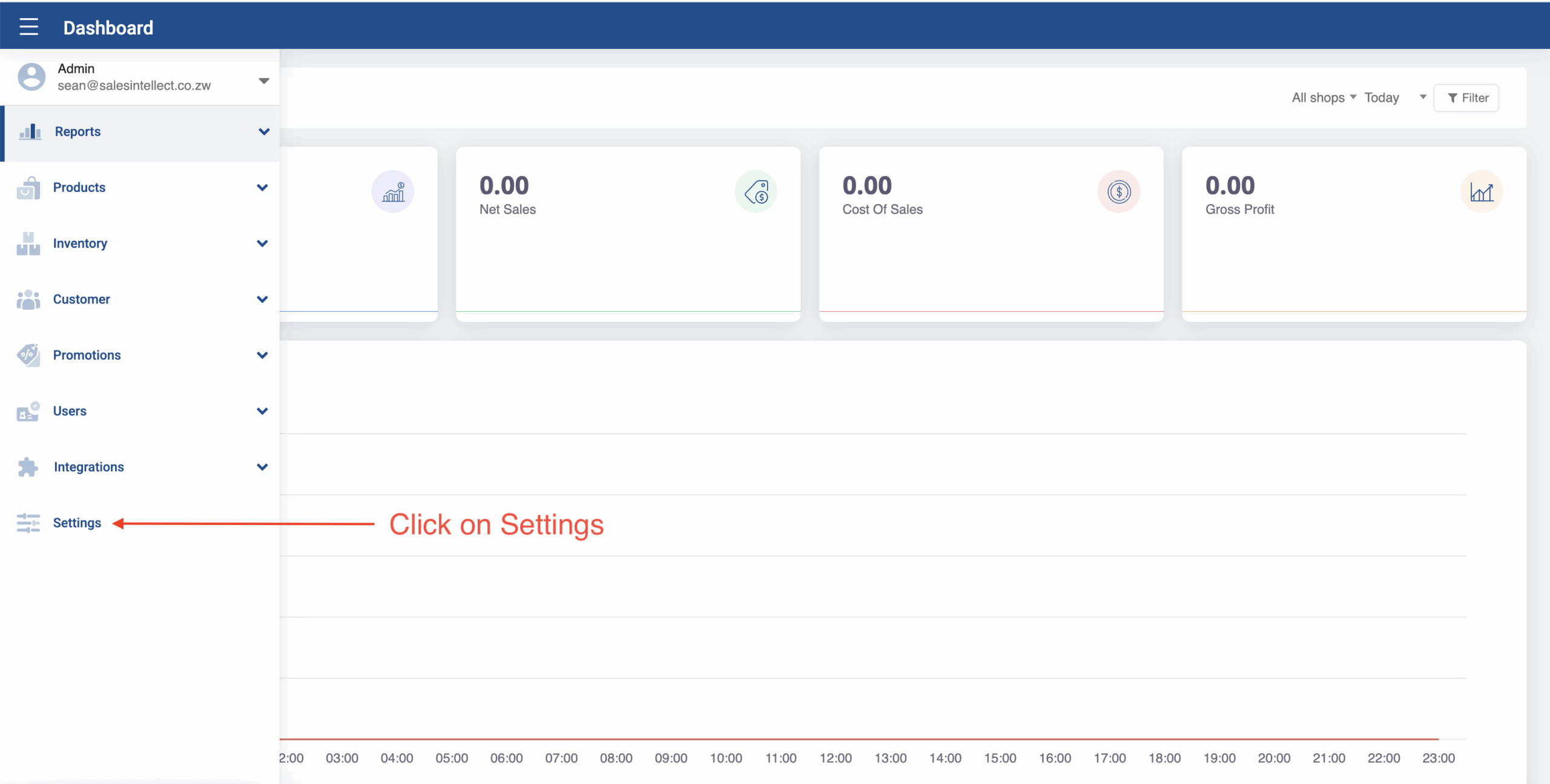
Click the menu button from the top left corner and navigate to Settings
Step 3:
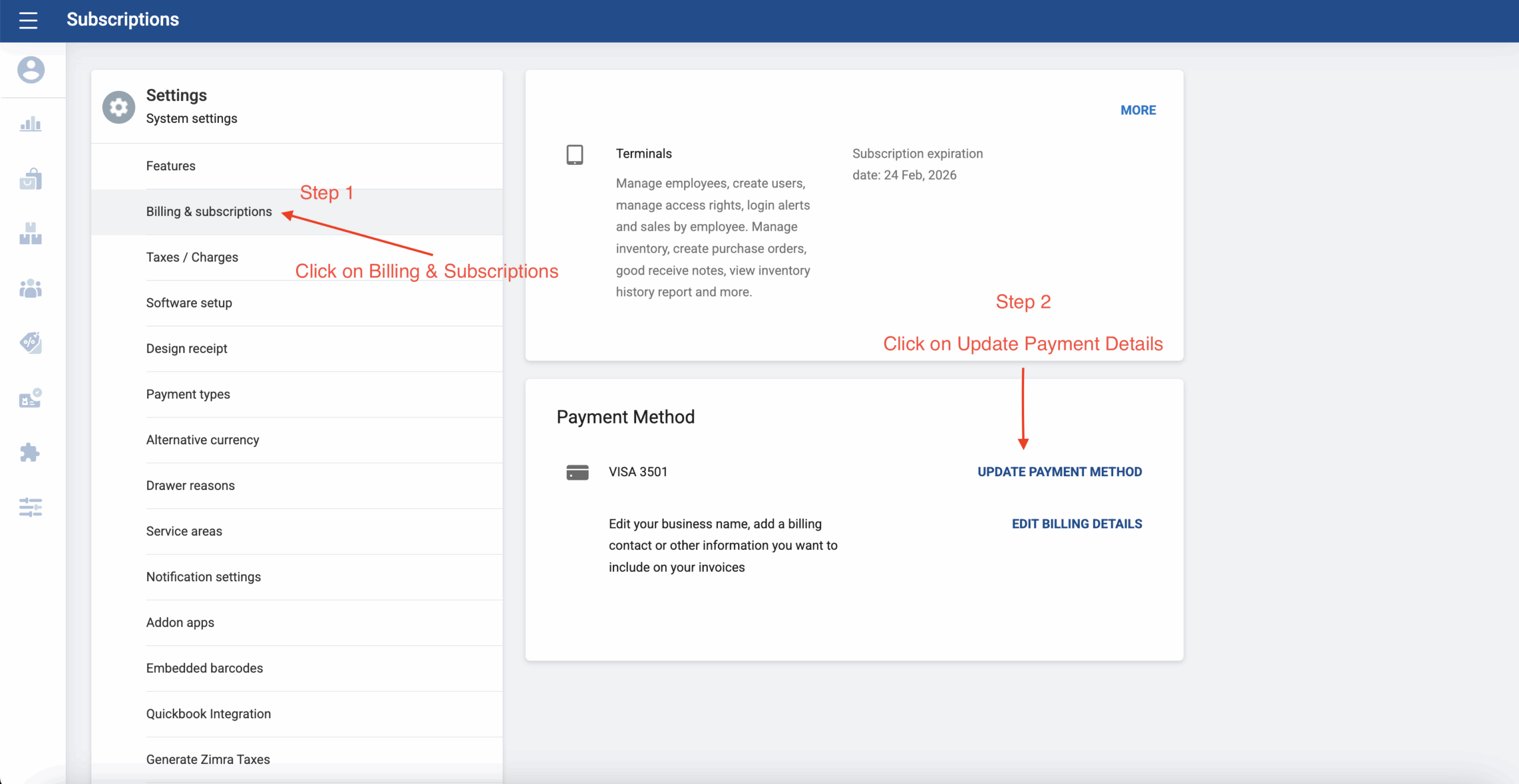
- Select Billing & Subscription.
- Click on Update Payment Method.
Step 4:
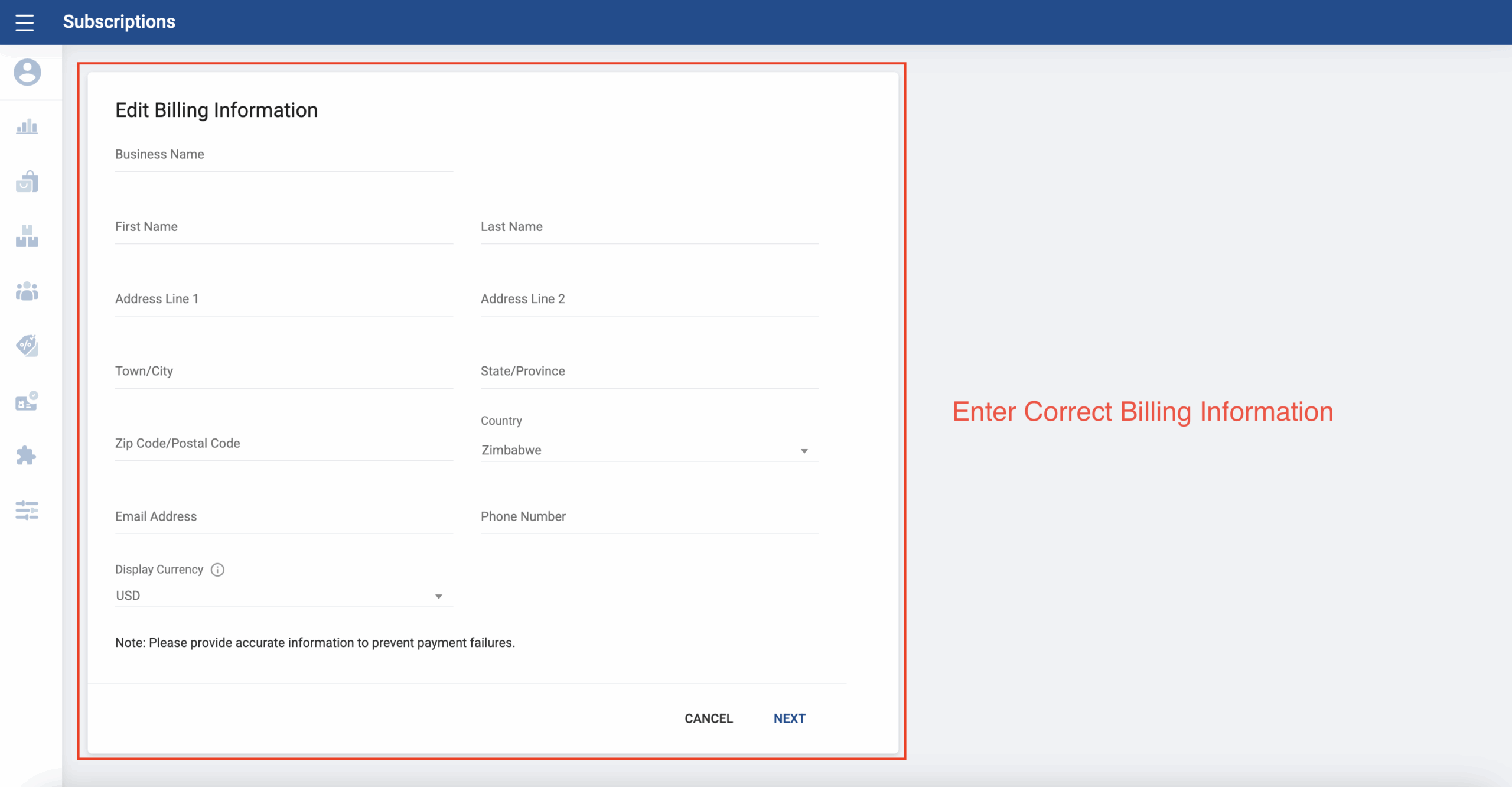
- Enter correct billing information.
- Click Next.
Step 5:
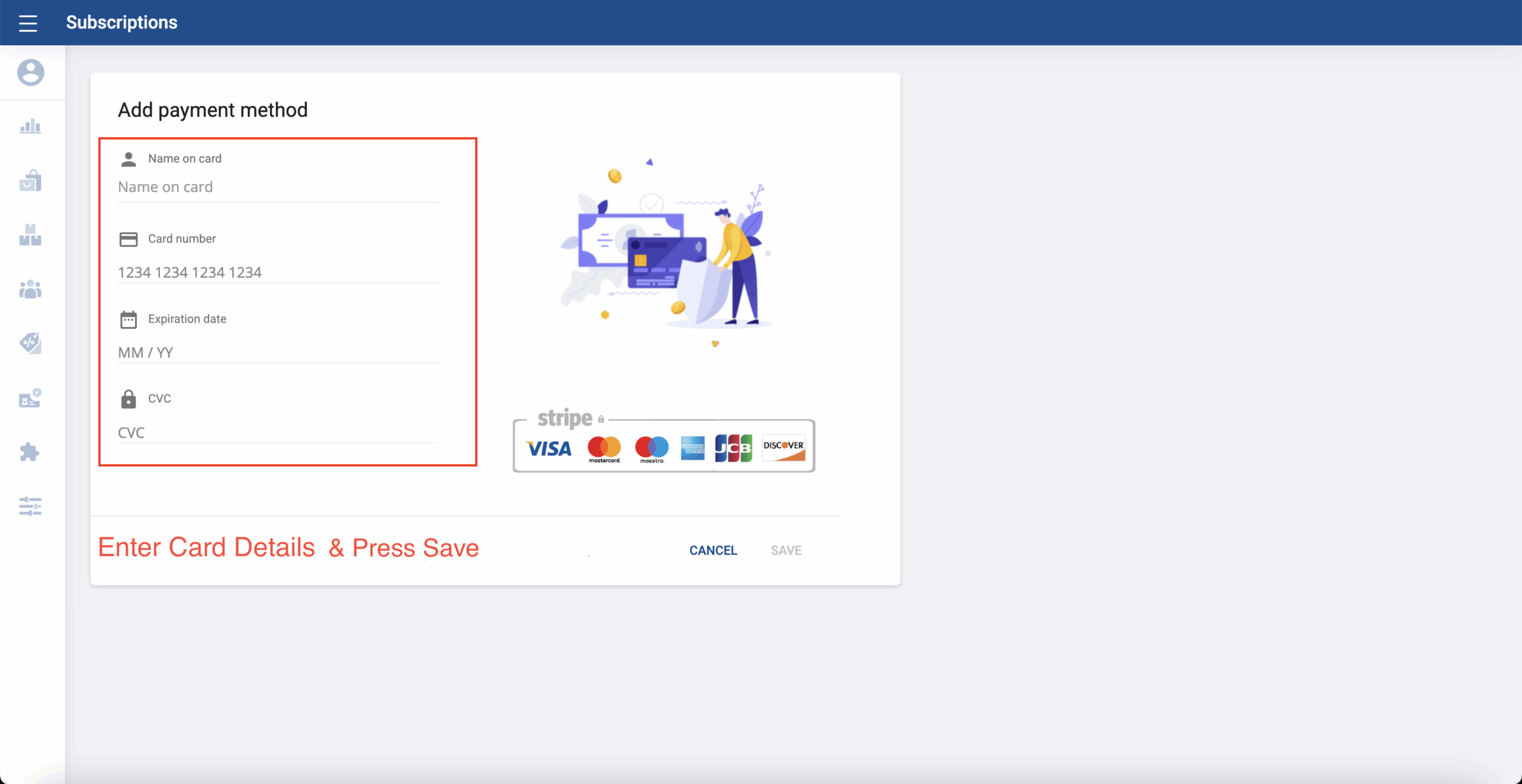
- Enter your card details, making sure to include the name on the card.
- Click Save.
Step 6:
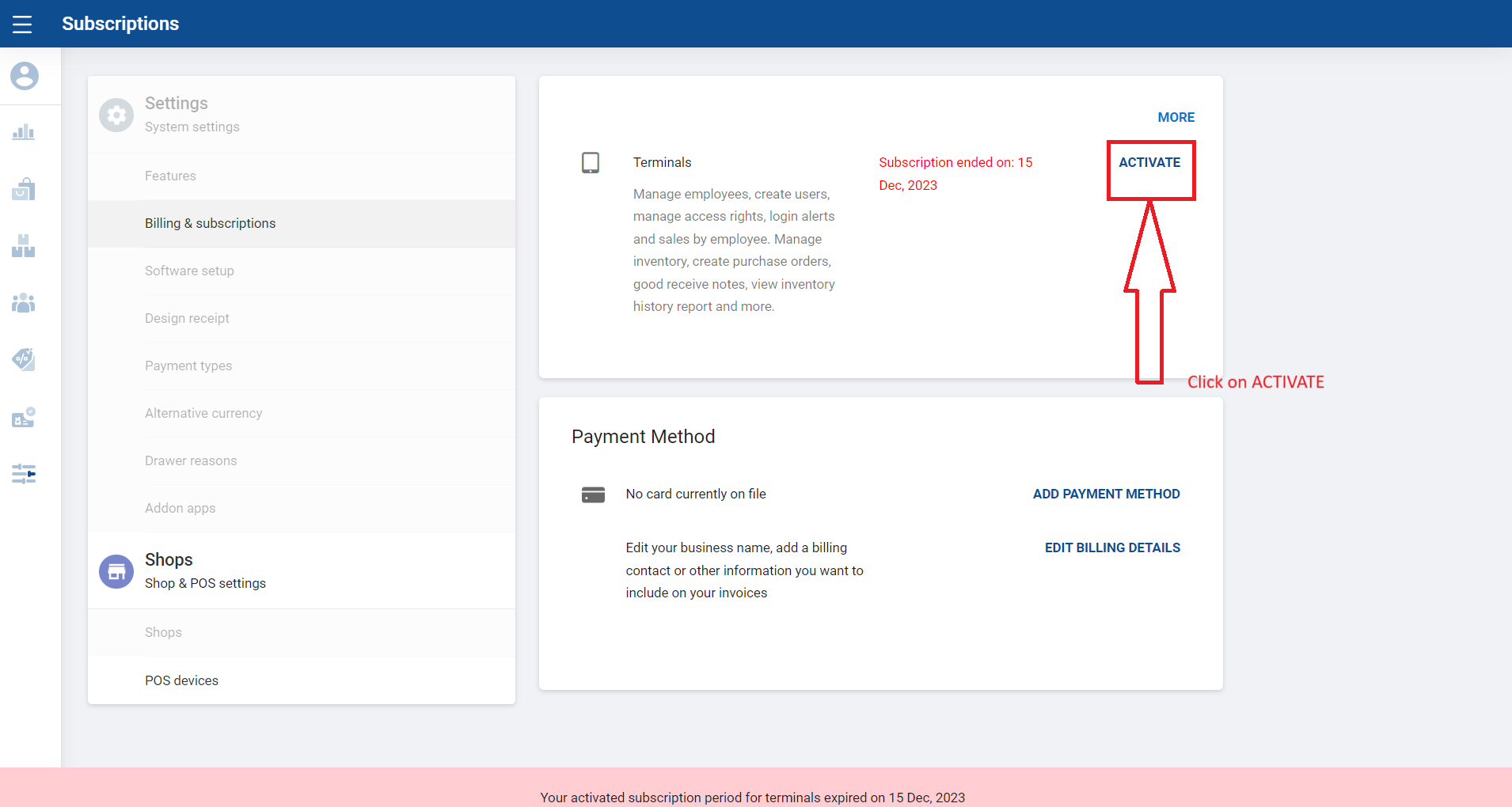
If your account has already expired, the ACTIVATE button will appear. In this case, click the ACTIVATE button as shown in the screenshot below.
If your account is still active, you can simply exit the back office and wait for the system to automatically process the payment when your subscription is due.
Please note that after successfully paying for your subscription, you will need to restart the POS terminal for the payment to be processed and recognised and for the POS terminal to start working. If you need further assistance, you can contact our always available support at support@salesintellect.co.zw

