How to use Open Orders Feature
1. Use Open Orders Function
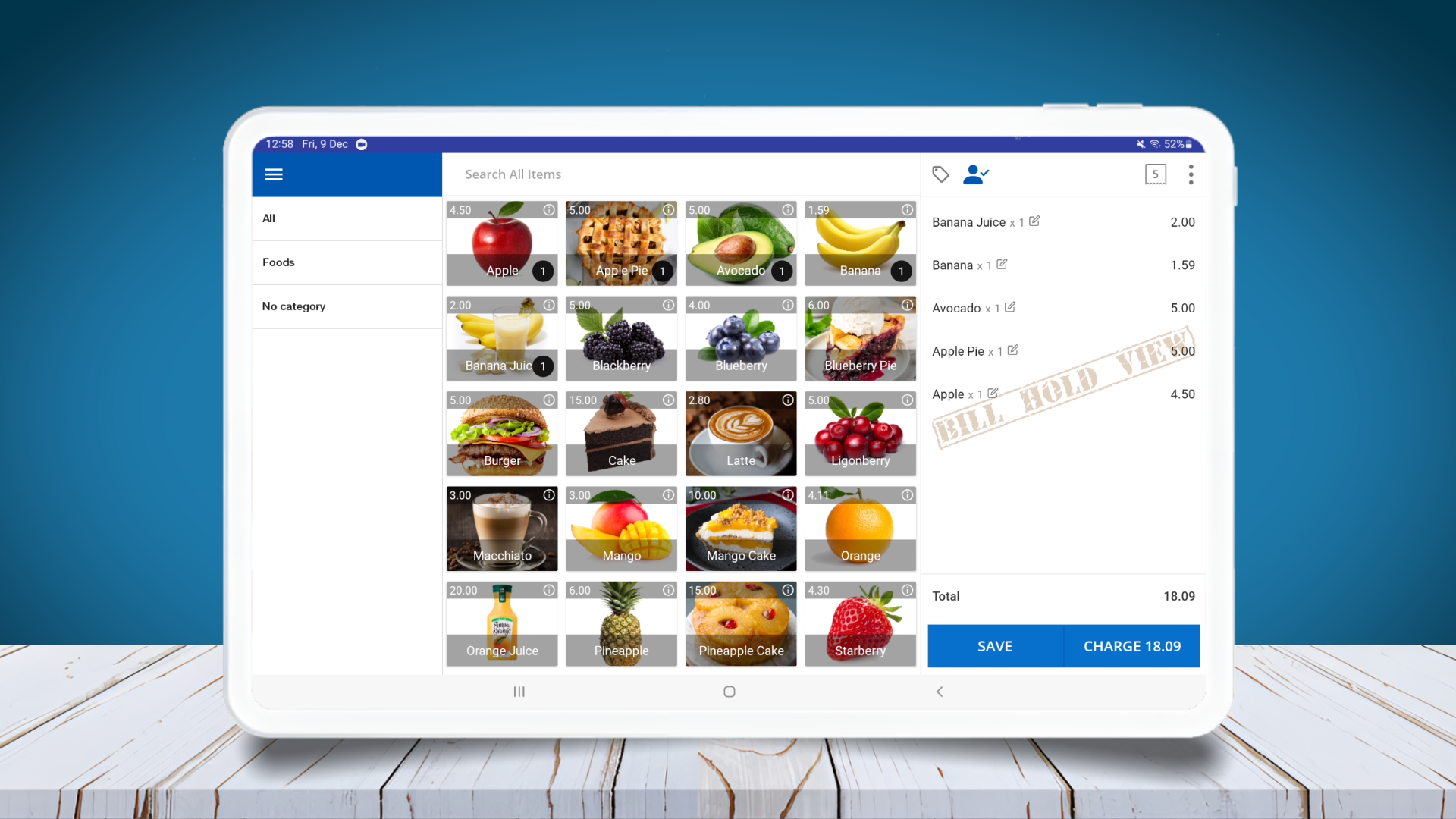
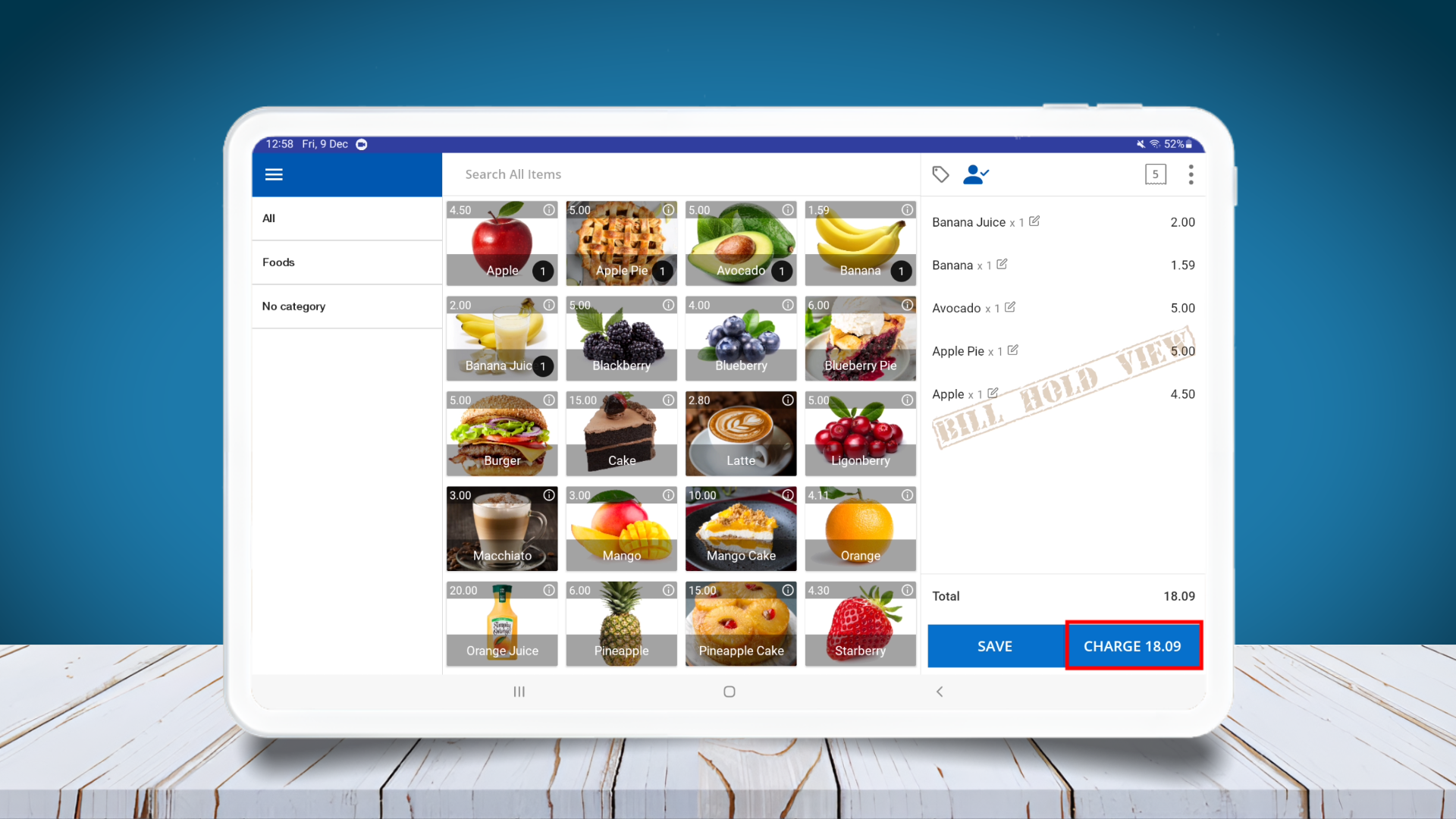
- Sales Intellect POS System allows user to put a receipt on hold when the customer wants to add more items to the cart.
- Ex: When we are in a supermarket and ready to do the billing, then we decide to go look at a few more items. At this moment the cashier has to put the sale on hold and assist the next customer. Once we come again with those items, cashier should be able to recall that hold receipt and update the order.
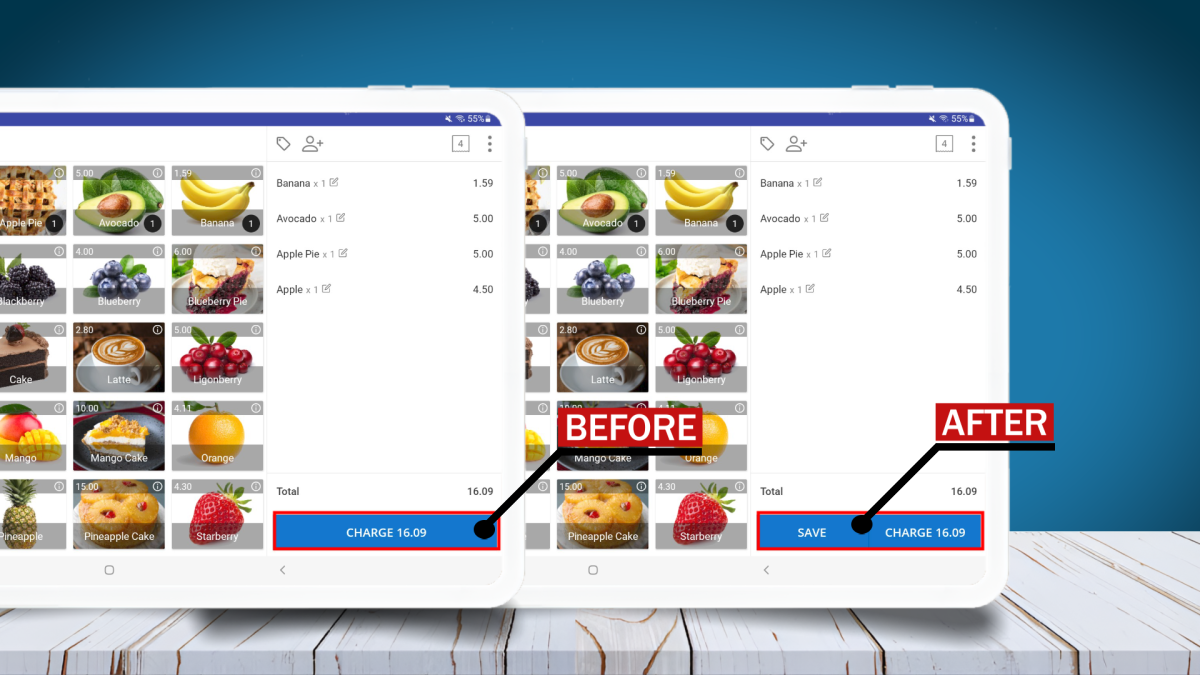
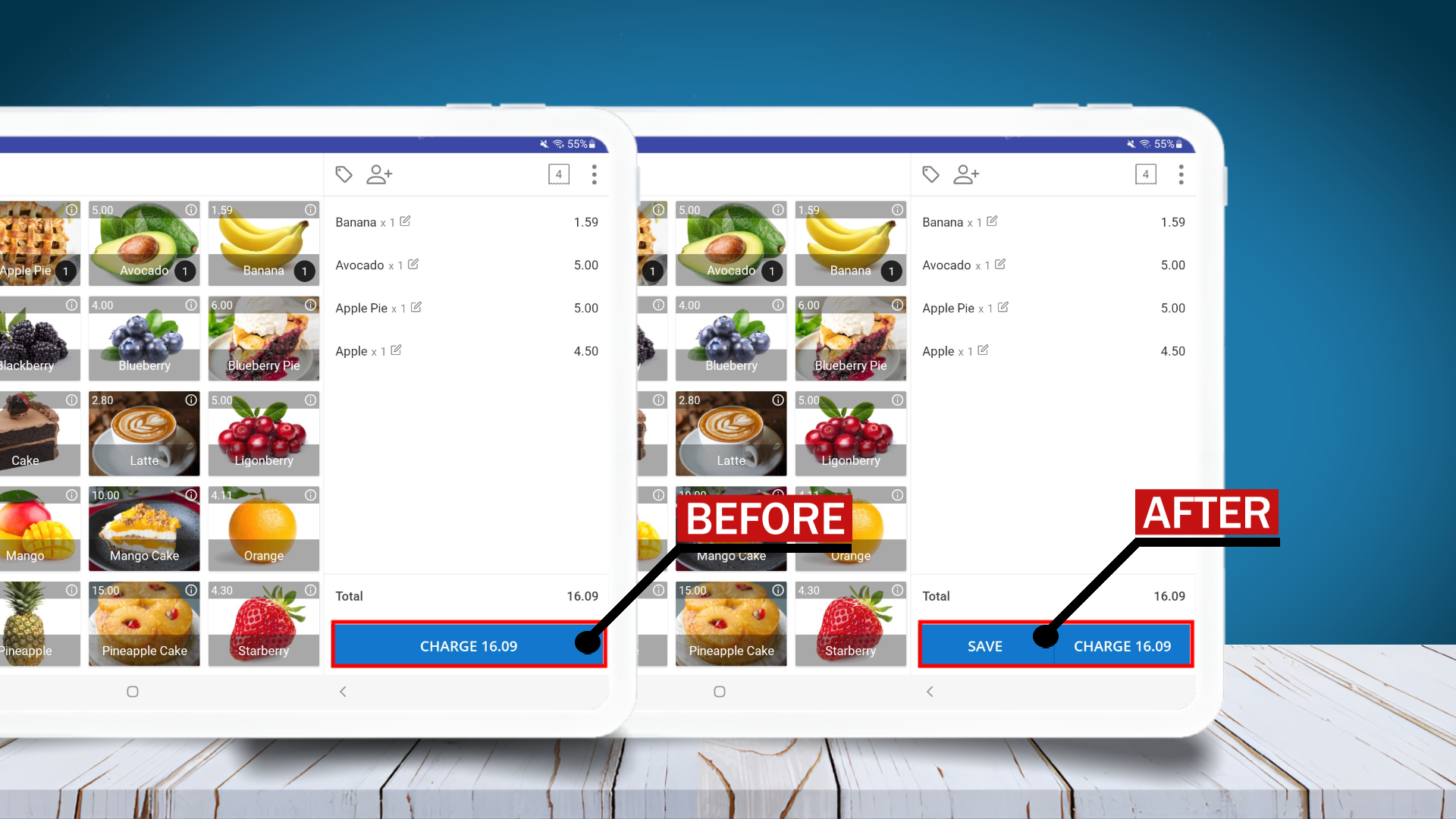
- There is a button at the bottom called “SAVE”. Once you select this button, the system will allow you to SAVE the bill. When the customer returns to complete their transaction, you can click the button in the same place called “OPEN ORDERS”.
- The “Open Orders ” feature is especially beneficial for businesses with dynamic ordering scenarios, particularly in the food and beverages industry, such as restaurants and cafes, where customers may continuously add items to their orders during dining. This feature allows users to save and hold a receipt, keeping it open and editable until the customer completes the payment.
2. Use Open Orders Function
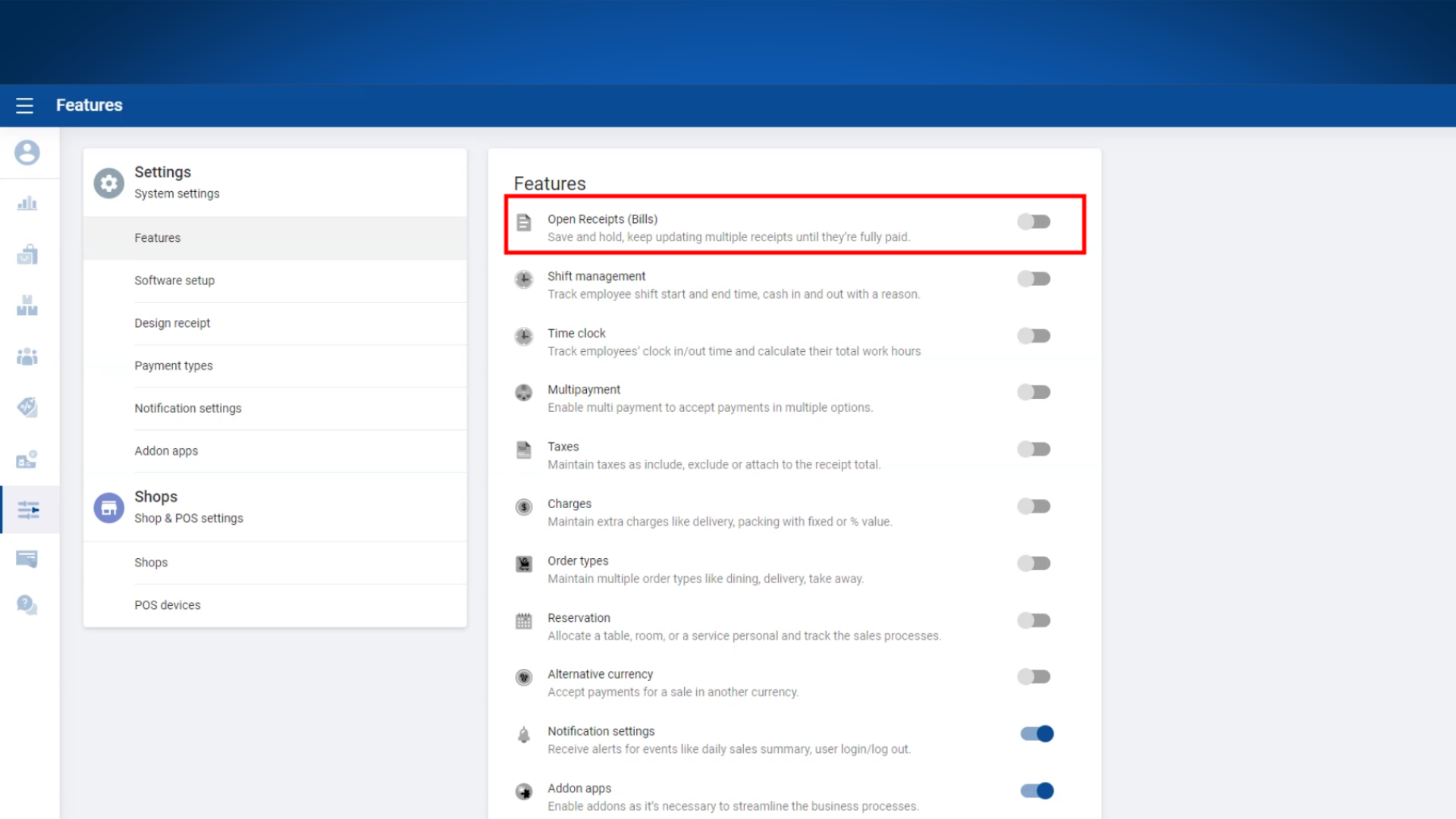
- Login to POS Back Office Webportal
- Select “ Settings ” from main menu
- Go to the “ Feature”
- Tick ON “Open Orders ” button
- Click “ Save”
(Once you enable “Open Orders”, it will appear on POS APP as “Open Orders” in new sales interface)
3. Use Open Orders Function
4. Use Open Orders Function
- POS App main menu
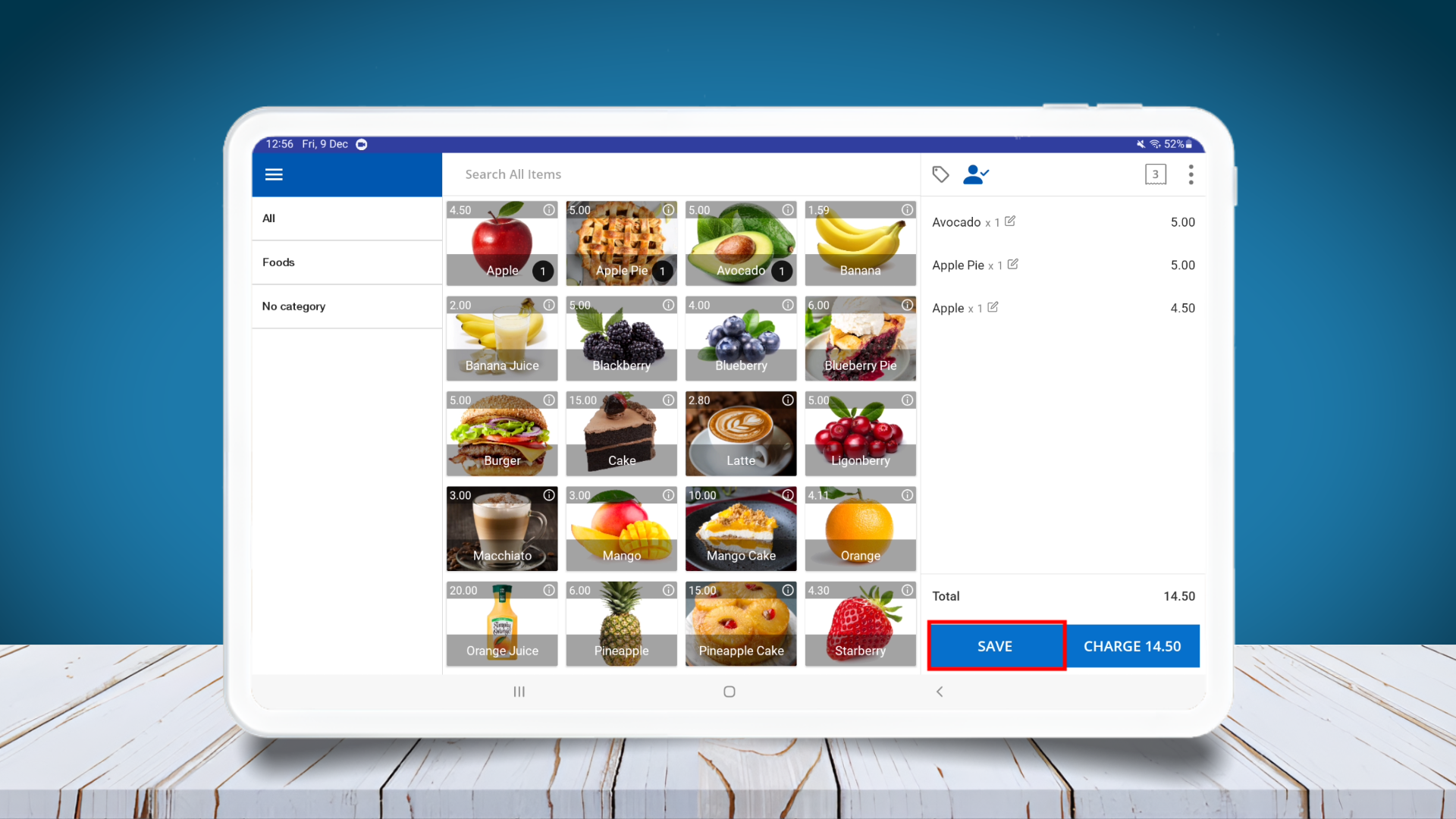
- Select “ New Sale ”
- Click items customer need to buy
- Click “SAVE”
- If you need to SAVE the receipt in a name you can enter name and click SAVE
(Once you have saved the receipt, it will be in “Open Orders” section, when you need it again, you can click “Open Orders” and select the receipt from HOLD section)
5.Use Open Orders Function