
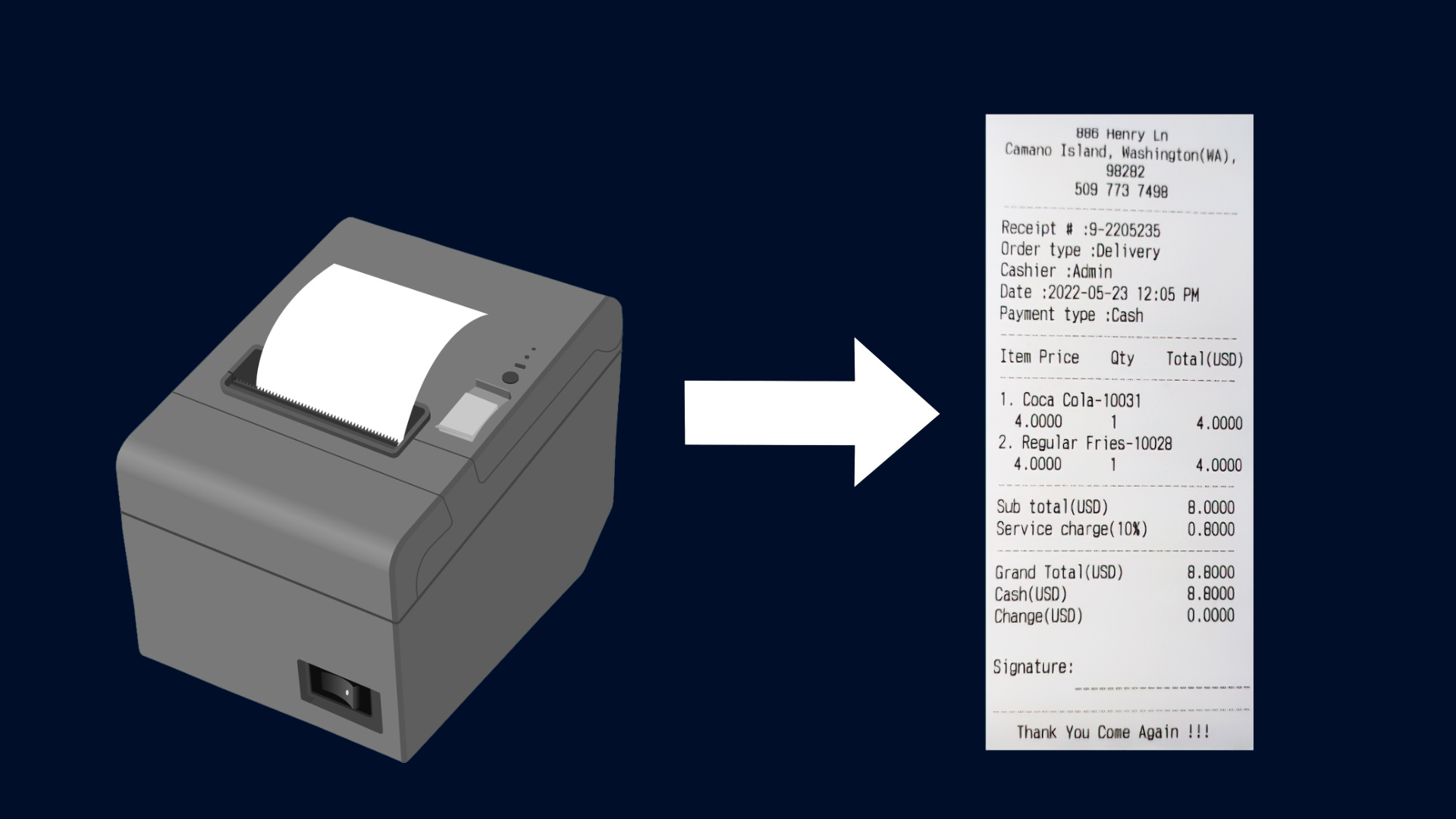
How to Set Up Printers
Sales Intellect POS supports a wide range of printer brands, including popular models like EPSON, ZEBRA, Star Printer, Xprinter, SUNMI, Blue Bamboo, BIXOLON, SCANGLE, and more.
If you’re using a different thermal printer model or brand, please select the “OTHER MODEL” option during the setup process. Supported connection types include Wi-Fi, network, USB, and Bluetooth.
Setting Up the Printer in POS App
- Open the POS app.
- Go to the Main Menu.
- Select Settings.
- Tap Printers.
- Click the Add (+) button to add a new printer.
- Enter a printer name.
- Choose the printer model from the list (if your brand is not listed, select Other Model).
- Select the connection mode (USB, Bluetooth, Wi-Fi, or Network).
- Choose the paper size.
- Enter the printer IP address (for Wi-Fi and network connections) or select the USB path.
- Tick the option to print receipts and bills.
- Click Save.
Setting up a USB printer
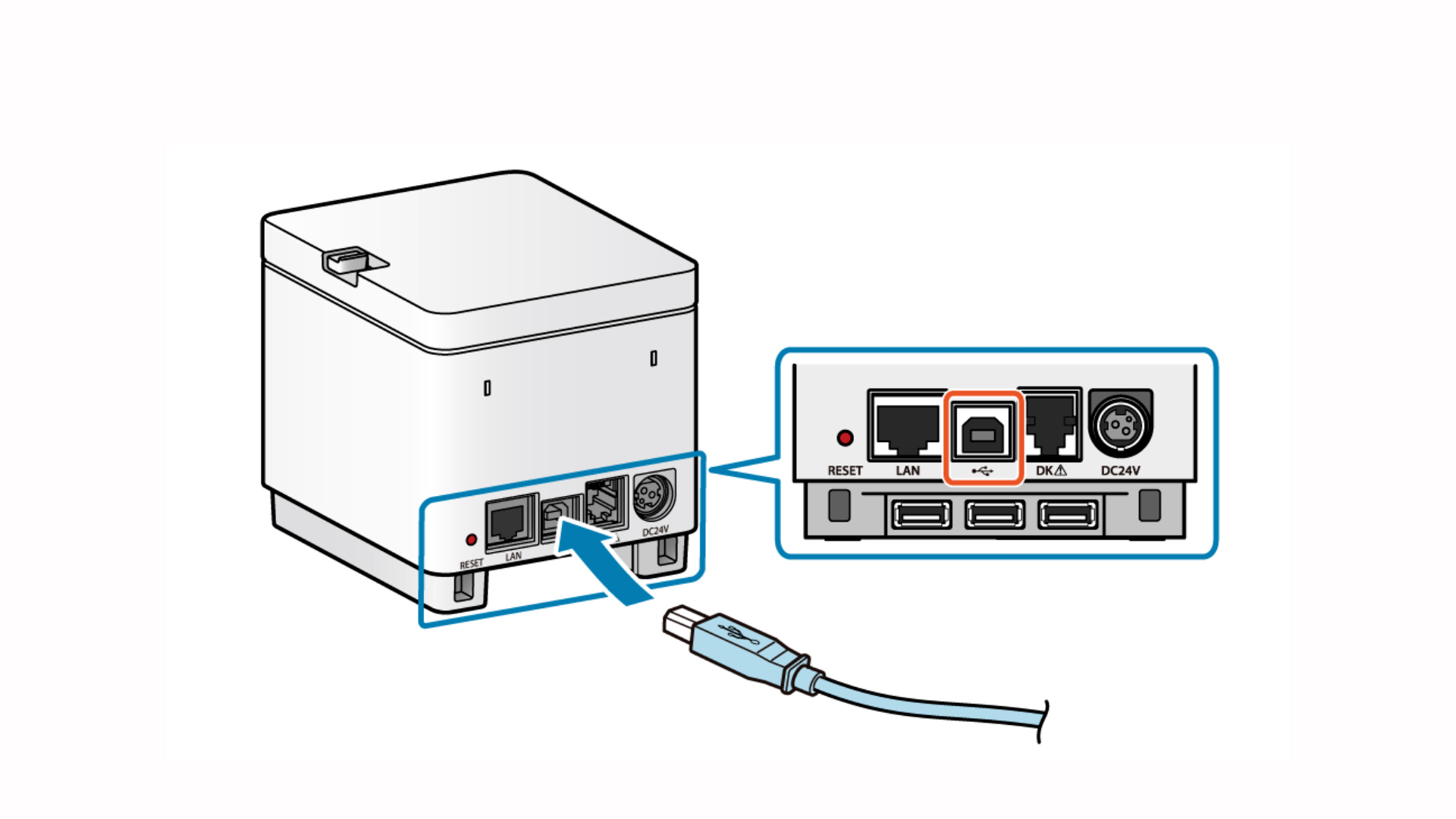
Connect USB cable to the printer and to the computer as well.
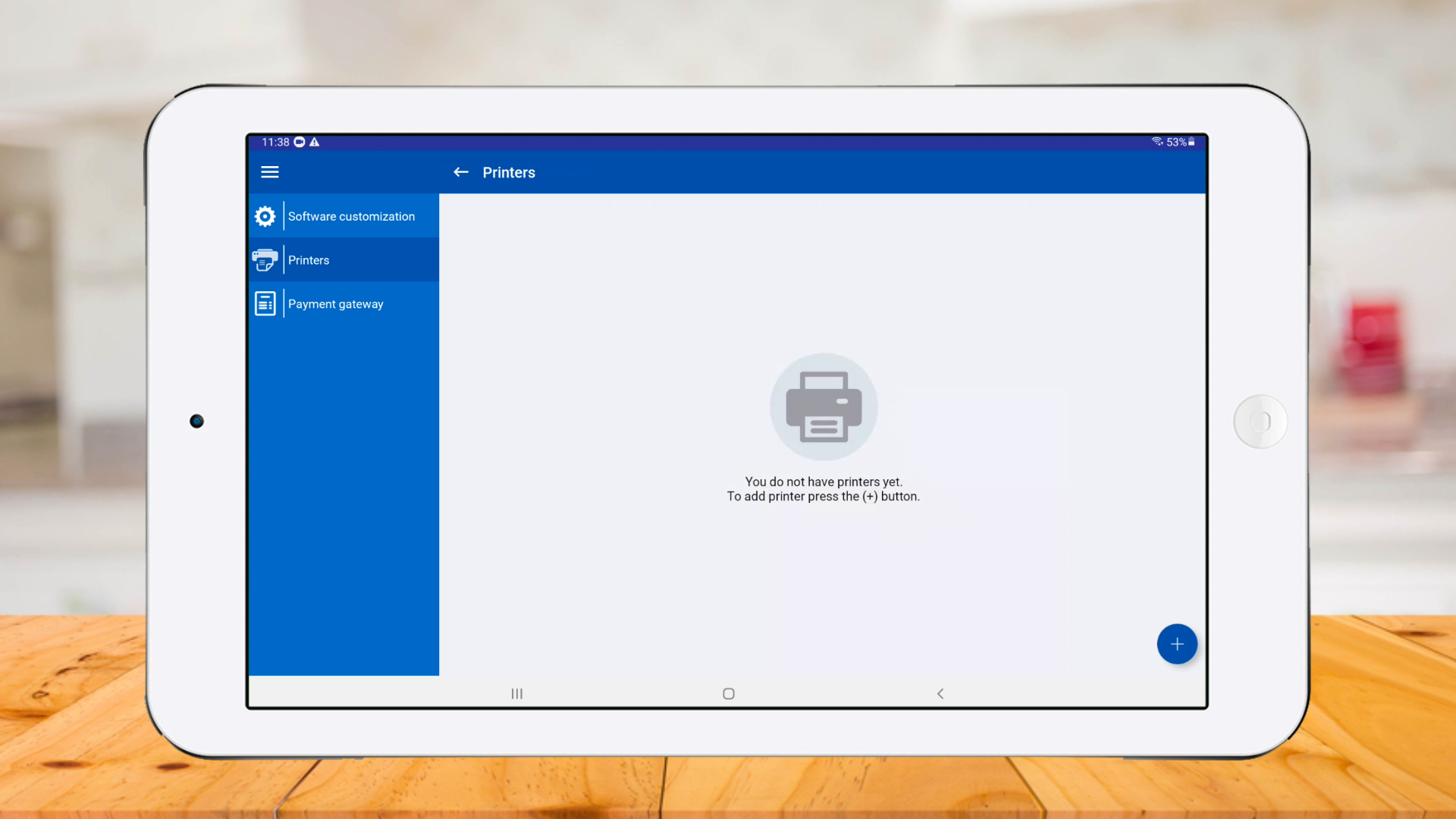
Go to Sales Intellect POS app > Settings > Printers and click ‘plus button.’
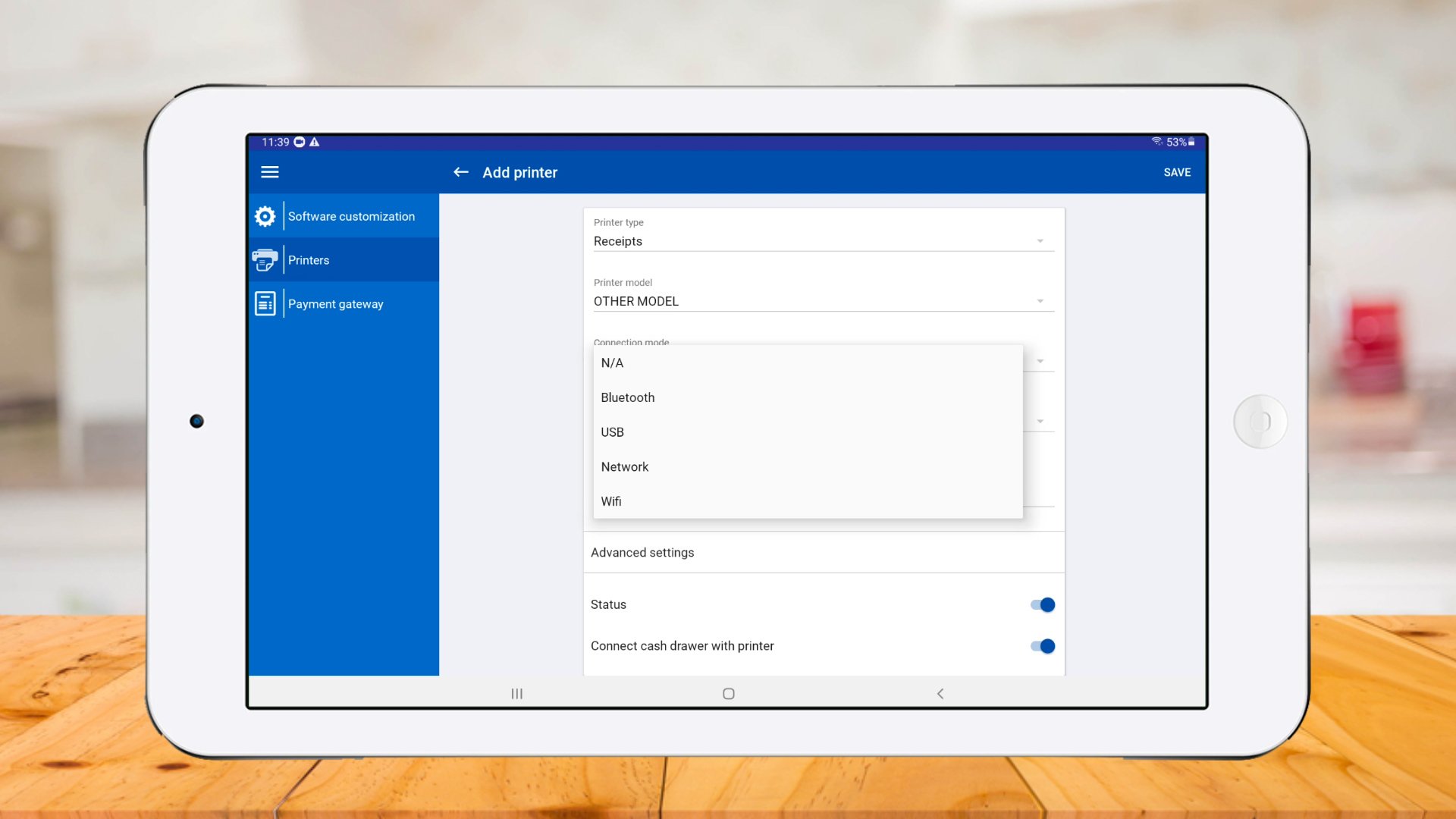
Select a ‘Printer model’ and select ‘USB’ as ‘Connection mode.’
Select ‘Paper size’ and click ‘Search.’

Printer connected successfully
>
>
Setting up a bluetooth printer
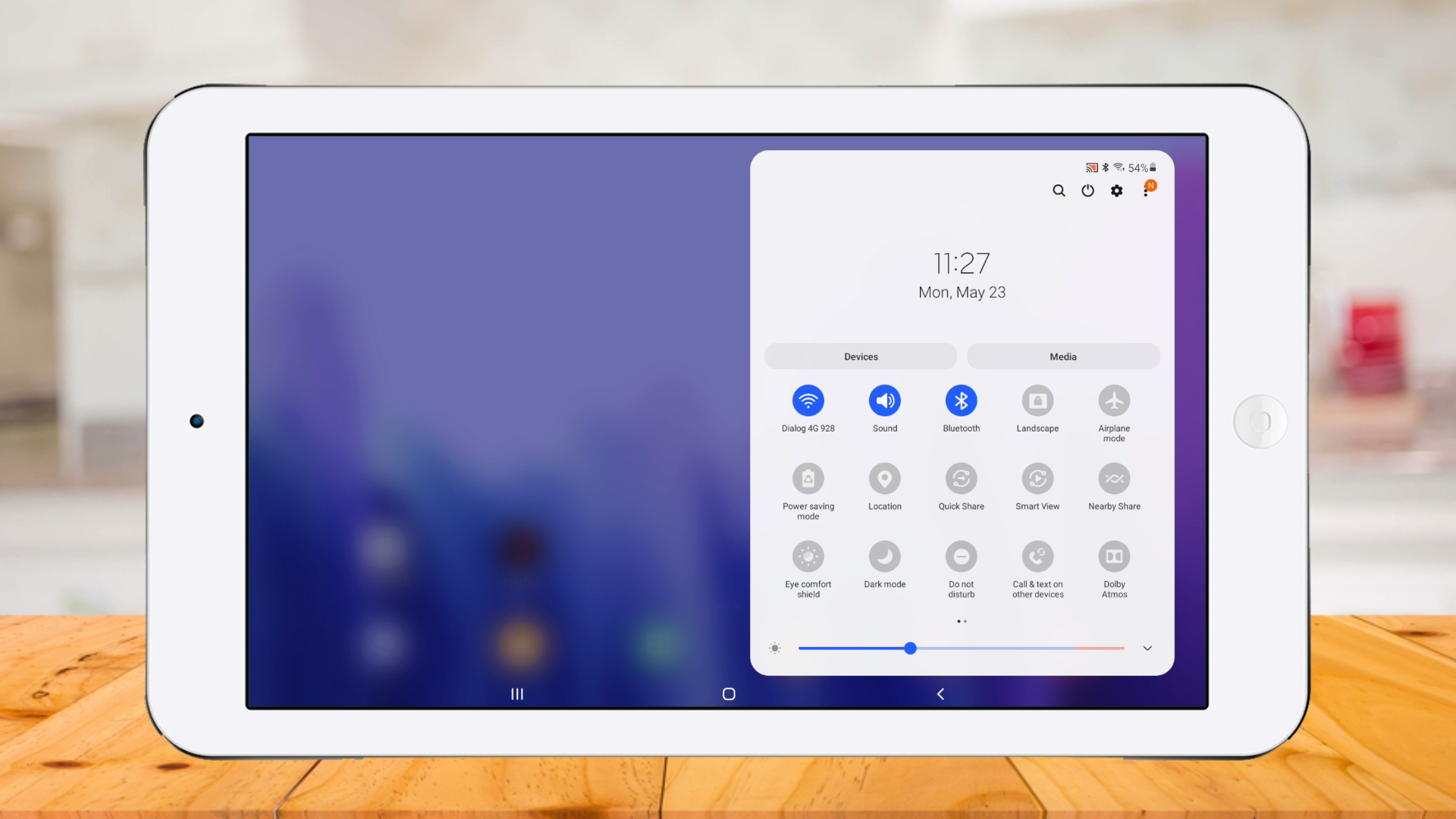
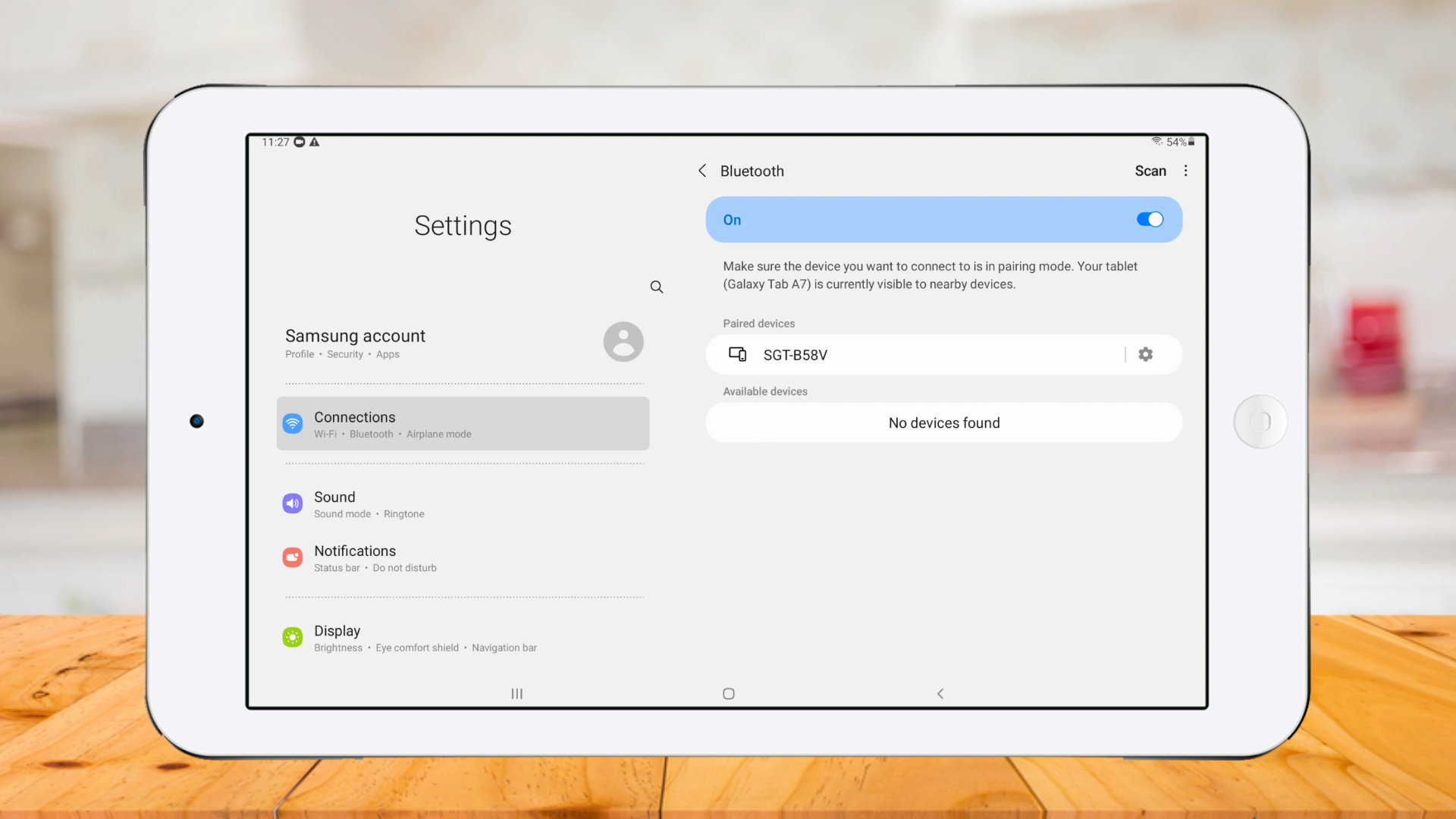
Turn on bluetooth from the device bluetooth settings.
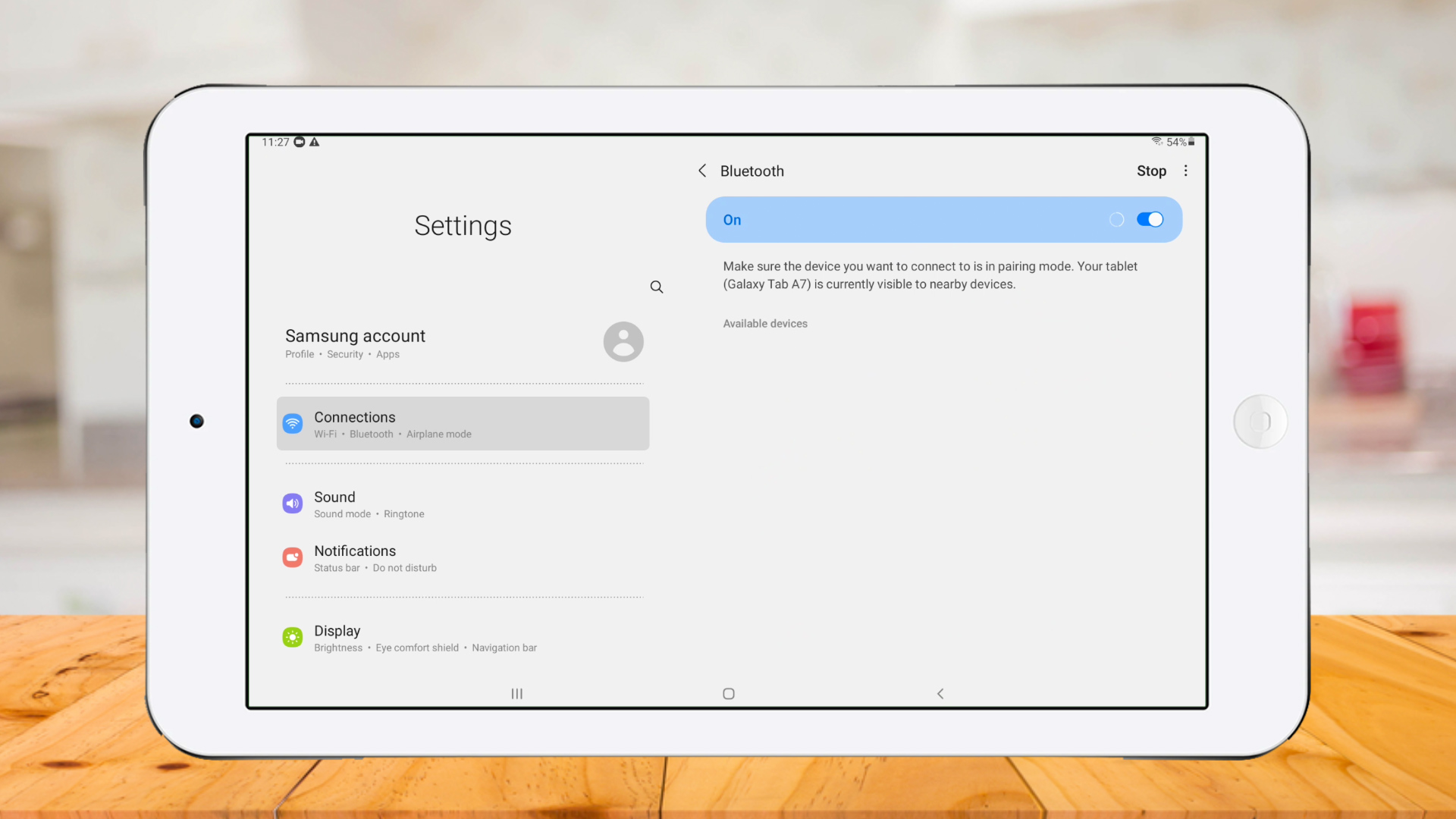
Click on Bluetooth printer name to pair; Bluetooth printers usually show names like BT-58, SGV-B58V, or something similar.
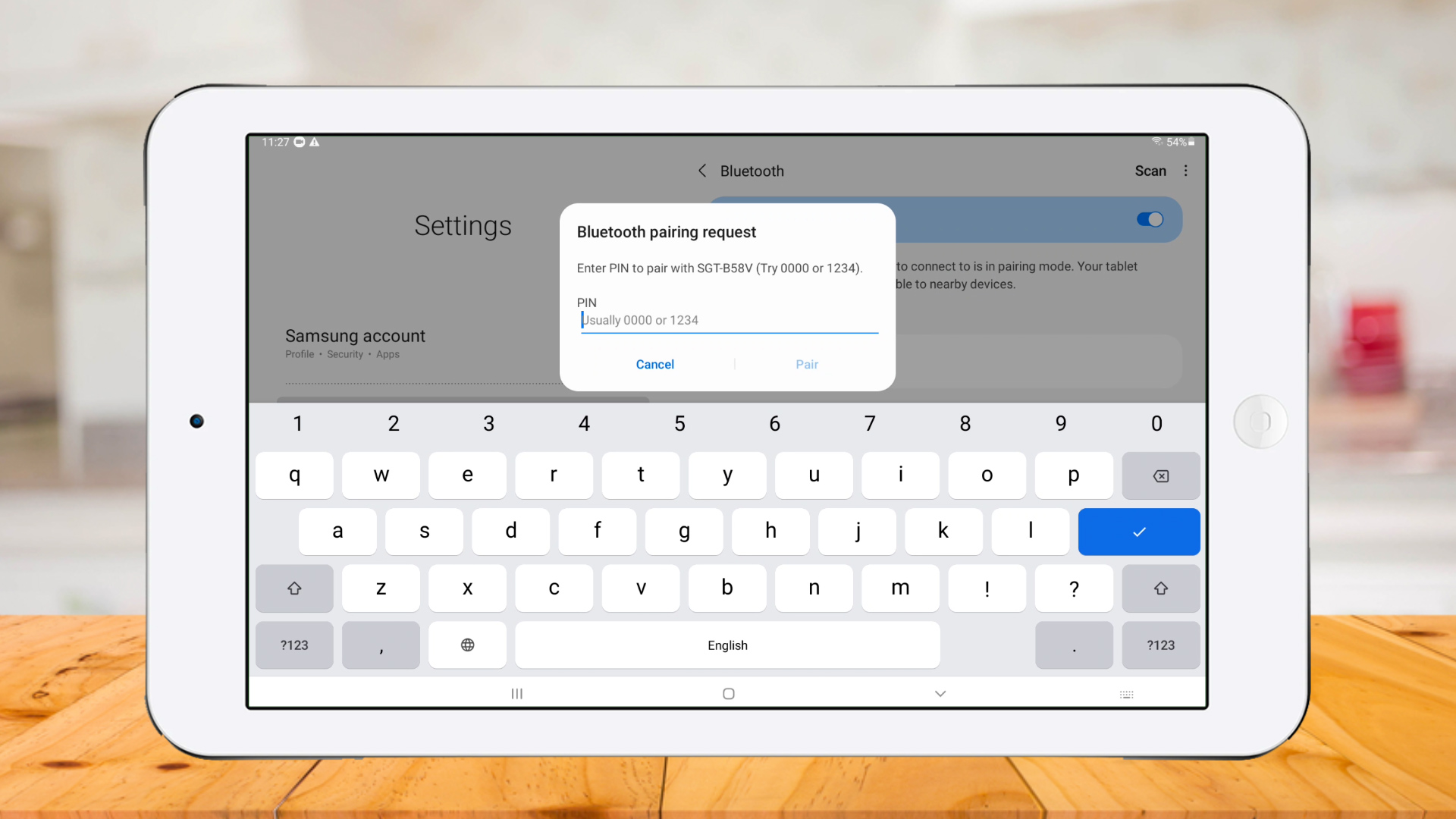
Add Pin number
Bluetooth Printer paired successfully with the device; now you need to configure the printer in Sales Intellect POS system.
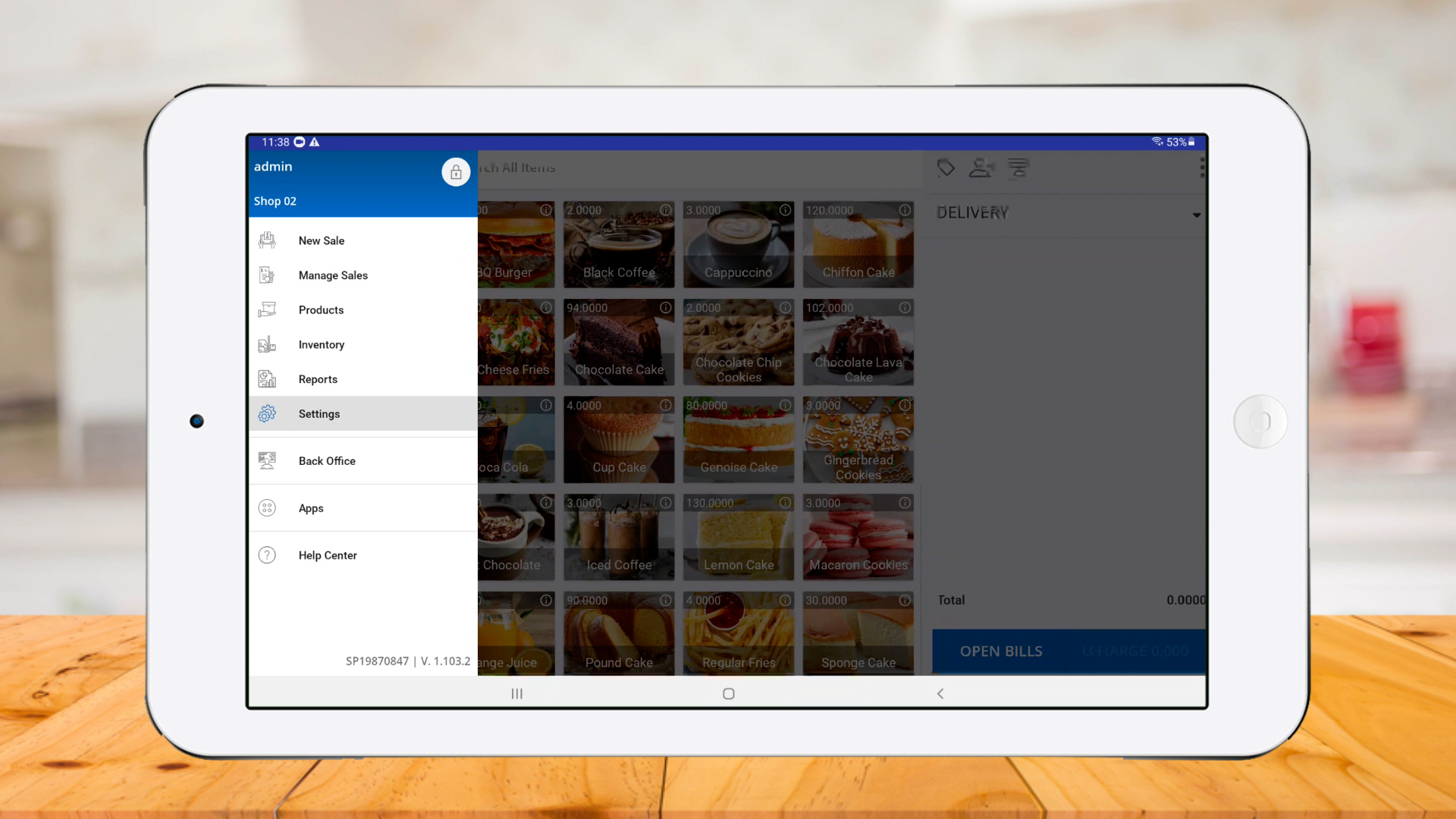
Go to POS App and click ‘Settings.’
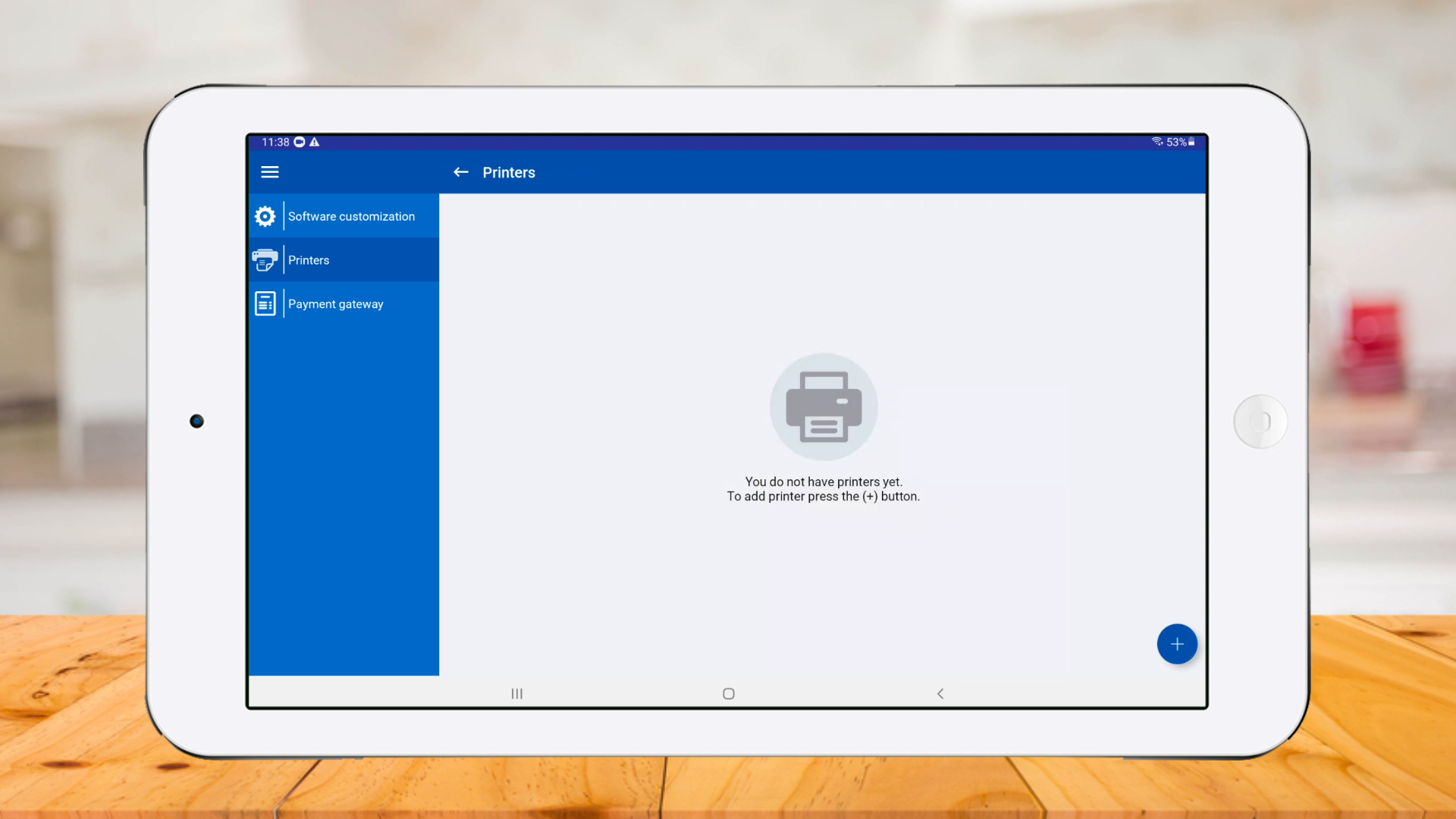
Select ‘Printers’ and click ‘Plus button.’
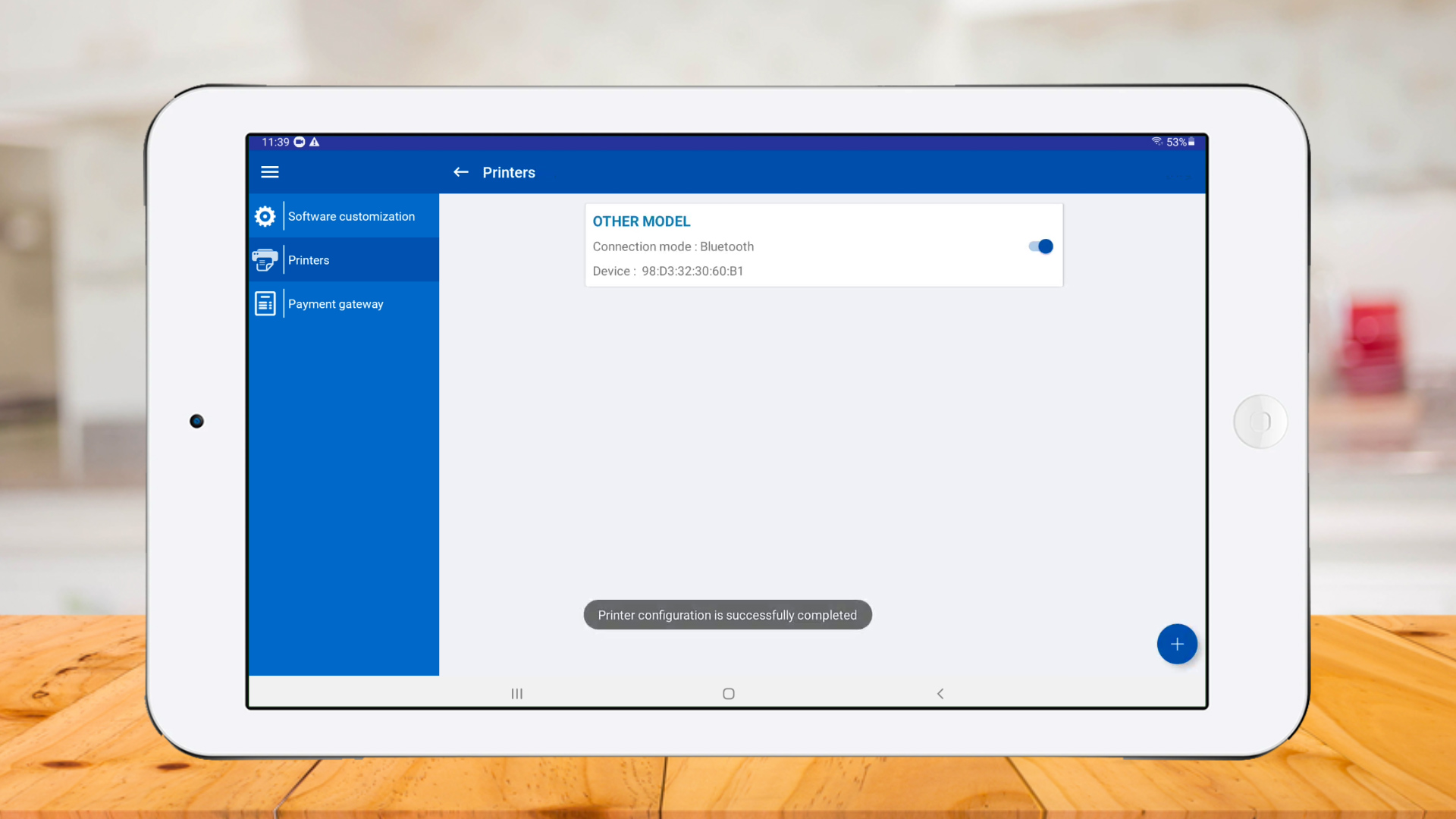
Select a ‘OTHER MODEL’ and select ‘Bluetooth’ as ‘Connection mode.’

Select ‘Paper size’ and click ‘Search.’

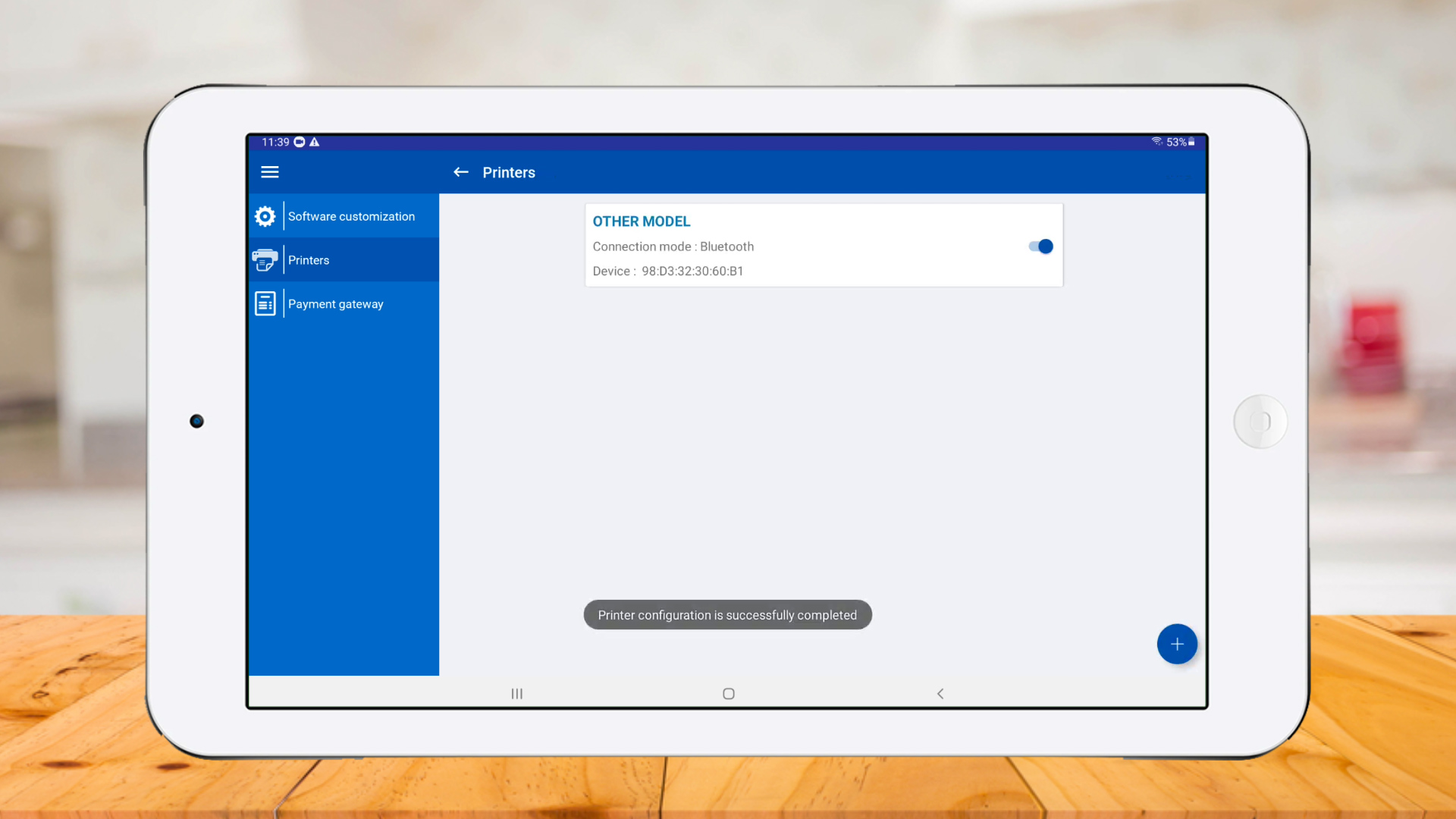
Printer has been connected successfully
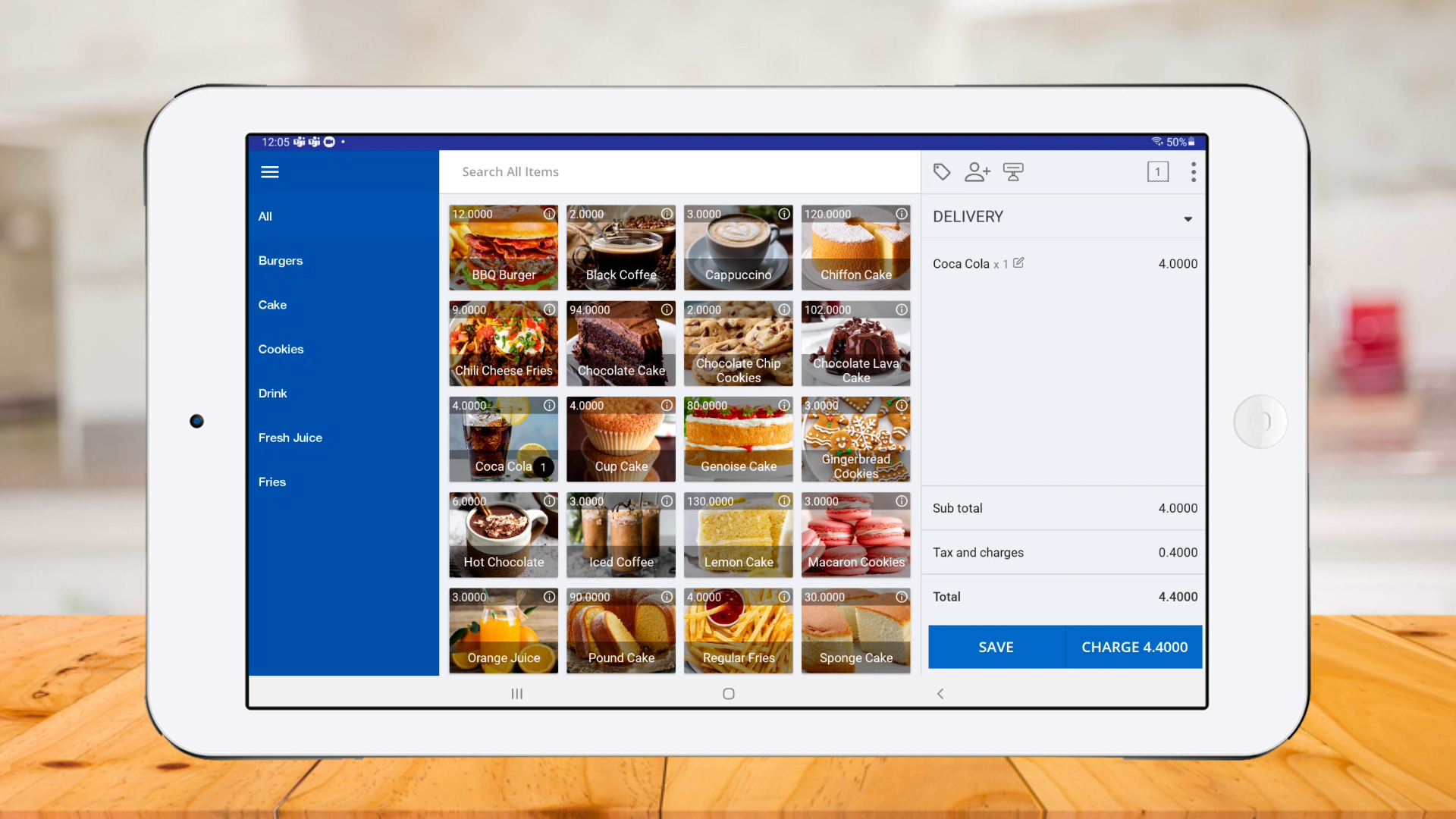
Click ‘New Sale’ , select products and click ‘CHARGE.’
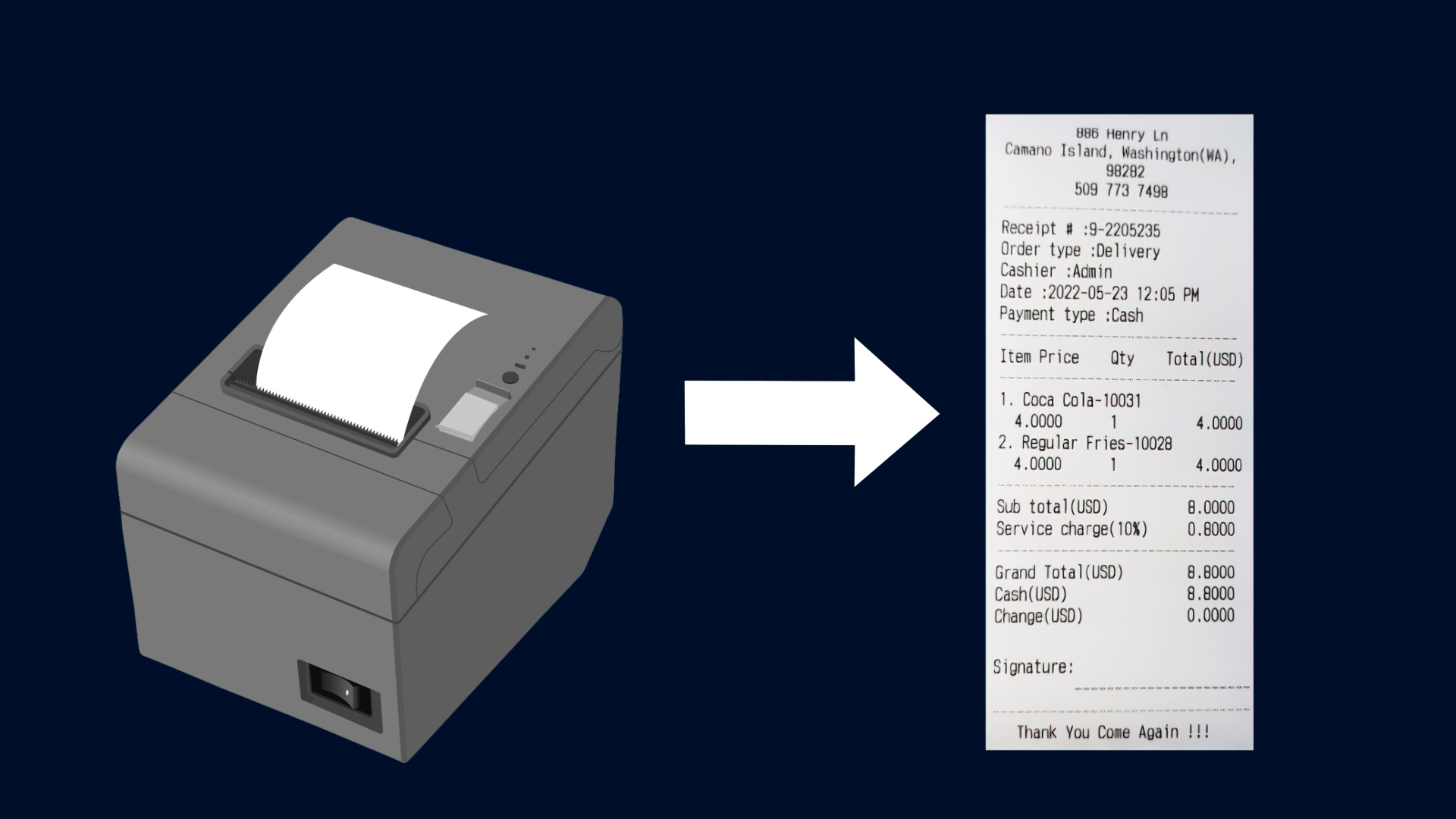
Receipt printed successfully


1 Comment.
Fantastic